Tuesday, 2 August 2016

How To Convert Date And Time In ADF Application

By using adf new component adf date Converter you can convert date and time accordin to your own Will .By default if you will choose date then Date Will Be show As in example
If u want to convert date  According To your Own Will drag and drop Convert date and time from component Pallate
Then go to properties of af:CovertDateTime write the pattern for you want to choose
for example    

dd-MMM-yyy HH:mm:ss 
After This Run Your Programm and check your date pattern (example Leave Date)


For All that The XML  Code Will Be

<af:inputDate label="Leave Date" id="it3" inlineStyle="width:300px; height:30px;"
                        
                           
                                      contentStyle="width:200px;padding:5px">
                            <af:convertDateTime pattern="dd-MMM-yyy HH:mm:ss"/>
                        </af:inputDate>

Thanx 
Mushtaq Wattu


Create Entity Object For ADF Apllication

In this tutorial we Will how to Create And Use Entity Object For Our Application Before Going to Practical Implementation we Should Know What Is entity Object:So first Step Is to Create ADF Application

Enter Application Name and than click on Finish

Right Click on Model and choose New

From the Business Tire category select ADF Business Components and from items select Business Components from Tables

Create the Connection to the Oracle Database

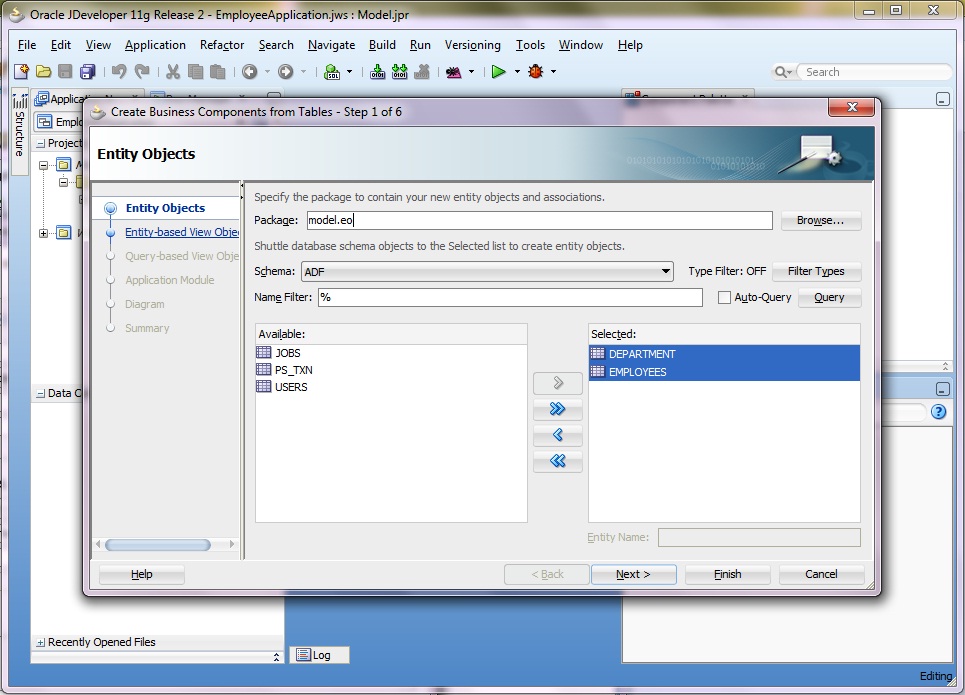
Query the Database Schema and move the Entities from Available to Selected window. In my case I am moving Department and Employees Entities. Rename the Package model from model.eo (for ease to remember)

Create the Entities based Views and rename the package as shown and than click on Finish

We can define two types of attribute

a) Control Functionality and behaviour such as Mandatory fields, Default values of the fields and also set the database interaction properties etc.
b) UI Hints – default UI representation such as Label of the fields, Tooltip, Format mask and control types etc
Expand the model.eo package and open the Employees entity. Click on Attributes and select the hiredate field from Employees entity. Now we will set the following attributes on the hiredate field.
1) Setting the default date value using the Groovy Expression
2) Setting the Label, Tool Tip, Format Type and Format on hiredate field

Save the Project. Expand model.vo package, right click on AppModule and choose run.

Oracle ADF provides swing based interface to interact our View Object. Double Click on EmployeesView1 and than click on plus sign to create a record. You will see that the default value of the hiredate date filed, Label is also set as we did. Move the mouse cursor to the hiredate field, Tool Tip will also appear automatically.


Thanx 
Mushtaq Wattu

Monday, 1 August 2016

How To get Dynamic Menues Using Custom SQL view Object part(2)

In perevious tutorial we learn about how to create view object which is the sub part of how to get view dyanamic menues from database
for this we learb step by step 

First you have to idea about view Object and View Links

Create three view Object For  and Then For Linking Create Three View Links

  • Menues 
  • Sub Menues
  • Forms And Reports


 For This Purpose I am Sharing The Snapshot


After This Take a menu bar Where you want to show menues For Example In template page
Make The Follwing Struture to show Menues
Now WE have to Assign Values To The Af:Iterator and AF:Menues
Assign a value To the iterator Which You will call in menu and The Name of Main menu in data Controls
Now Focus On values and Var of  Iterator
Now Click on Menues and in output text write The First entry of your menu with the variable you declare    #{mainMenu.Mainmenu}      Where mainMenu Is var you decleared and MainMenu Is from data Controls The Firts Entry of all attributes Showing in Example


After This You will repeat The Steps for Submenues and Then For Forms and Reports

Now For Other Iterator Write This 


AFter This Write The Follwing Code which is mention in text for sub menues  


 After Giving value to last iteror whose picture is not showing here we will assign value to text which is decleared in iterator


Follow Thes steps after Doing All This You will Get Drop Down Menues like This
To get This Project U  can Approach me..
Thanx 
Mushtaq Wattu
ADF UI devloper


Saturday, 30 July 2016

How To get Dynamic Menues Using Custom SQL view Object

Today we will Discuss How to get Dyamic Menues In Jsf Page from Menues
For this Purpose We should Have The follwing Concept


  • View Objects
  • View Links
  • Collection Model Tree,Iterotor

So we Will Complete This Topic In Three Tutorial first Of All we should have the basic idea of View Object Which is discuss in this tutorial

Sql Querry base view ViewObject decribes how the application will view and update data. A View Object may be Entity based or non-Entity based. In the former case, the View Object consists of one or more Entity bases. The first one of these is referred to as the primary Entity base. The rest are called secondary Entity bases. An Entity based View Object maps its attribute (View Attributes) to attributes in the Entities (Entity Attributes). An Entity based View Object may map all its Entity Attributes or only some of them. However, an Entity based View Object is required to map all primary key attributes of the Entity bases. An Entity based View Object may additional include attributes that are not mapped to an Entity Attribute. Such an attribute is referred to View level attribute.  A non-Entity based View Object is one where it does not have any Entity base. All its attributes are View level attributes.  View Object is responsible for managing database query statement. Regardless of whether the View Object is Entity based or not, it may have a SQL statement from which it draws its data. As rows are read from this query, it will populate a RowSet (of this View Object) with View rows.  View Object provides a number of APIs through which the client can modify and augment the query statement during runtime. For example, see ViewObject#setWhereClause().  A View level attribute (not mapped to an Entity attribute) may map to a column or a SQL expression in the query statement. It may be a transient attribute (whose data is purely in memory and not mapped to any database column/expression. Or, it may be a dynamic attribute. 


SQL Query Base View Object

 sql query base view object are used to get data from database the example of query base view  are when we get dynamic menus from database in our jsf page
Now we will discuss how to create sql queery base view object from database
Follow The Follwing Steps To Create View Object


  1. Click On model and choose View Object From Gallery To create view Object
  2. Change The Name Of view Object And Choose custom Sql Querry Then Click Next
  3. After that write Your Sql Querry (Which ever you want to get from database) and then  on bottom click "Test And Explain" the follwing message will be show "Your Querry executed Successfully"
  4. After That Click Next on attribute mapping Choose any one option
  5. After This Choose Primary Key and checked the filed "Key Attribute

  6. Then you can click next ,next and in application module checked the boxed add to application module 


Your View Object Is Ready To Use You can Access it in jsf Page

 Next Tutorial We will Leran How To link View Object  and Then Complete How to Get Dynamic Menues Using Iteroror


Thanx 
Mushtaq Wattu


Thursday, 28 July 2016

Skining And Balancing Of ADF Form

ADF form are Very important because in buisness application forms are mostly used .they are backbone of every adf application so today i will discuss you how to design form for your adf application
Follow the follwing steps To create form in adf Application page
 
1)After Creating Jsf Page Drag and Drop panel group layout to you page and set its layout to vertical

2)Now drag a view(for example Employees) and choose form from option  and drop it to
 panel group layout


3)Then change the rows and columns of panel form layout according to your desire


4)now You have to skin your form 
change the background color adf form


 5)now we have to focus input text of our application 
input tex has three part for skin
they are mentoned in the picture below


content style is for input text part and label style is for output text part we can add inline css as well as extrenal css


6) Now we have to balnace all the input text of our form for this purpse  we will write height and width in content style

7 ) Now write this code to chagne the background color of input text we will write this code in adf skin  for global selectors 


Your form is ready to use  in perfect balance form


Thanx For Corporating

Mushtaq Wattu


Monday, 18 July 2016

Download Alta UI Icons For Your Applications

Get All Alta UI Icon
The Oracle Alta UI system was used to develop the most recent Oracle Cloud products, the latest versions of Oracle Fusion Applications, a number of innovative mobile applications, with many more to come.
  • Fully redesigned UI component set and interactions
  • Fresh visual design complements modern layout approach
  • UI conducive to responsive design techniques
  • Native Mobile UI


Download From Here
Thanx 
Mushtaq Wattu